 ClipShot
Screenshot tool for Windows
Capture it. Mark it up. Share a link.
ClipShot is a fast, Lightshot-style screenshot app. Press PrtSc, drag over anything on your screen, add arrows, boxes or text, and it's already on your clipboard. One more click turns it into a short link you can drop into any chat.
How it works
From key press to pasted image in a few seconds
ClipShot sits quietly in your system tray. Nothing to open, nothing to sign in to — the screen freezes the moment you press the key, so menus and tooltips stay put while you select.
01
Press PrtSc
Or click the tray icon. The screen freezes and dims. Shift+PrtSc grabs the whole screen instantly.
02
Drag to select
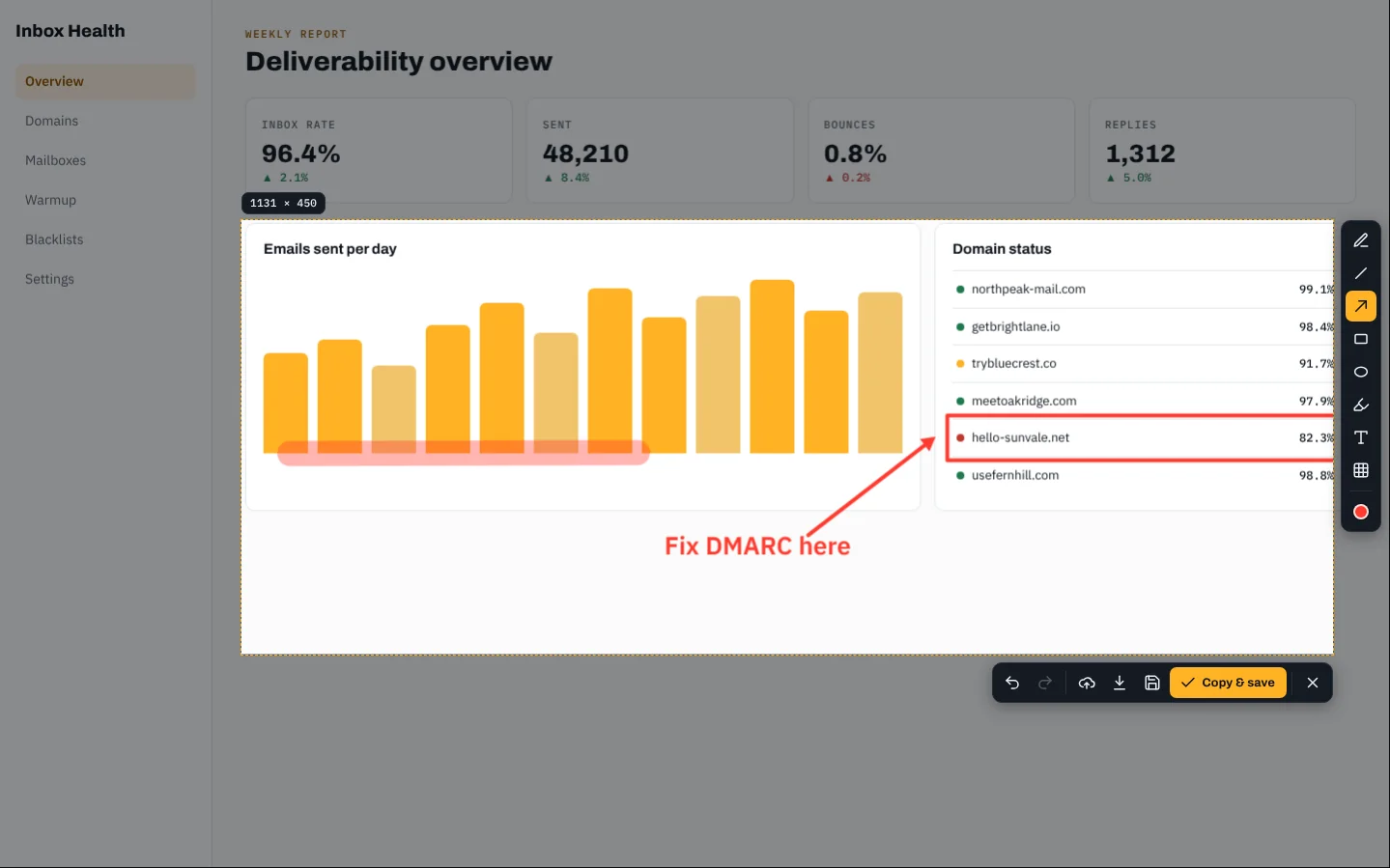
A live pixel size shows as you drag. Move or resize the area with the handles, or nudge it with the arrow keys.
03
Mark it up
Pen, line, arrow, rectangle, ellipse, highlighter, text and pixelate — right next to your selection.
04
Paste or share
Press Enter: copied to the clipboard and saved to your folder. A small popup offers Upload & copy link.
The editor
Everything you need to point something out — nothing you don't
Tools appear beside your selection the moment you let go. Draw directly on the frozen screen, then copy, save or upload. Hold Shift for straight 45° lines and perfect squares and circles.
- Pixelate hides emails, API keys and anything private before you share.
- Pixel-perfect on high-DPI and multi-monitor setups — saved at full resolution.
- Double-click or press Enter to finish, Esc or right-click to cancel.
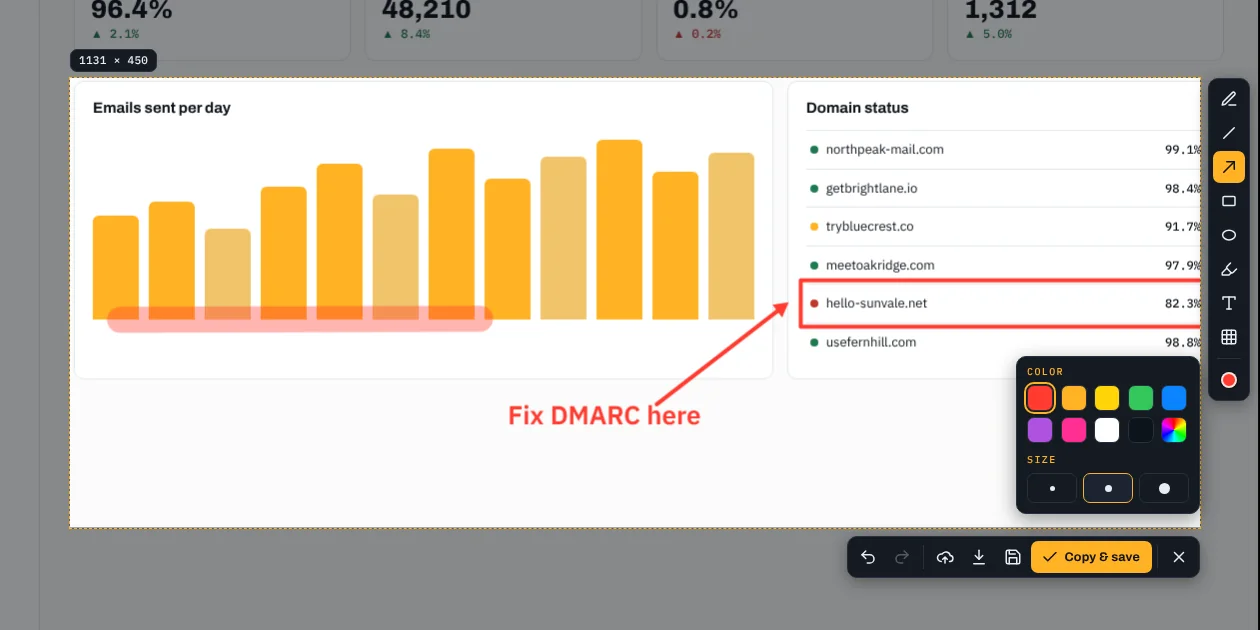
Colour & size palette
Quick upload
Copied by default. A link only when you want one.
After every capture a small card slides into the corner. It never steals focus, so you can keep typing. Click Upload & copy link and the short link replaces the image on your clipboard — or ignore it and it fades away on its own.
- Disappears after 12 seconds (adjustable). Hover to keep it open.
- Short, unguessable links like shot.toukirahmed.com/k3x9f2Qa.
- Offline? The image is still copied, and the upload retries automatically when you're back.
- Prefer it automatic? Turn on “upload every capture” and the link is copied straight away.
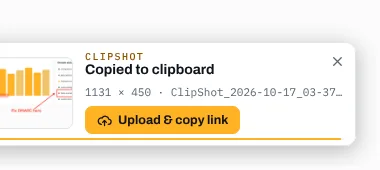
After capture
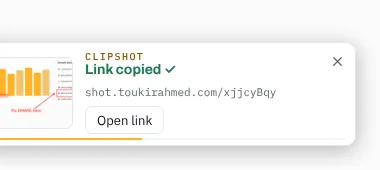
After upload
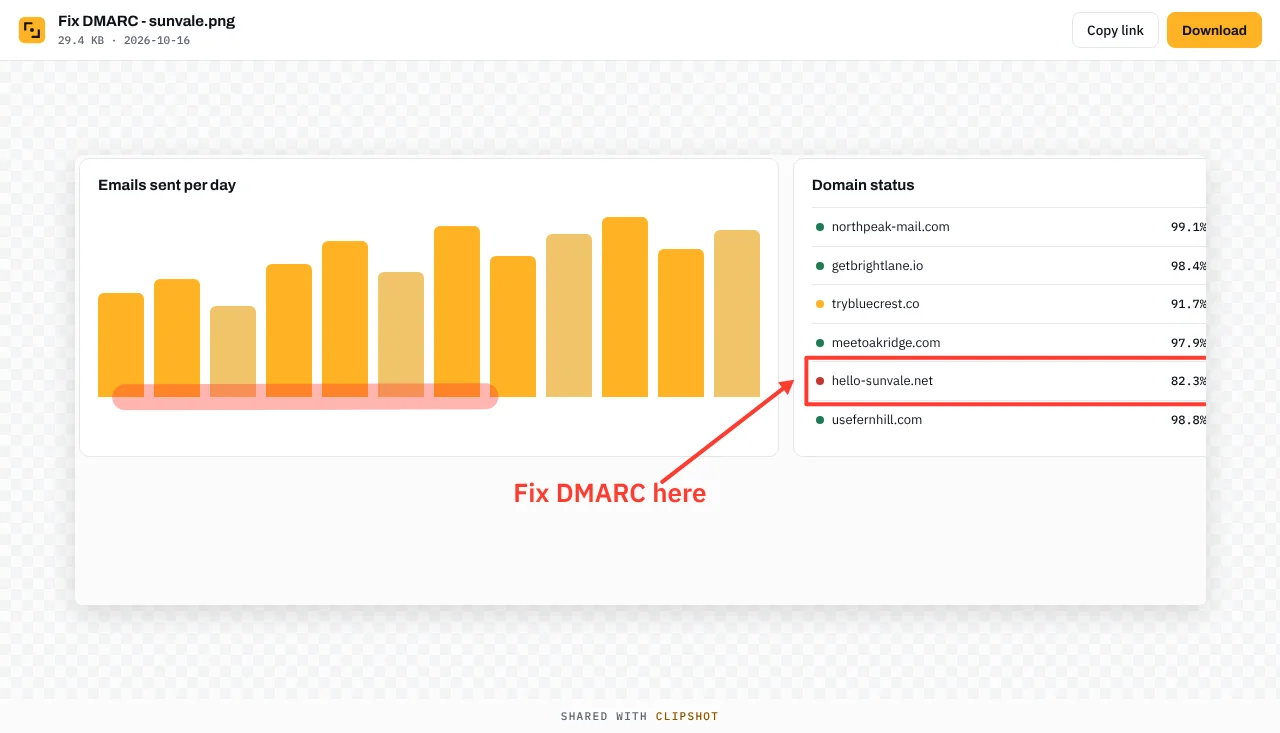
What people see when they open your link
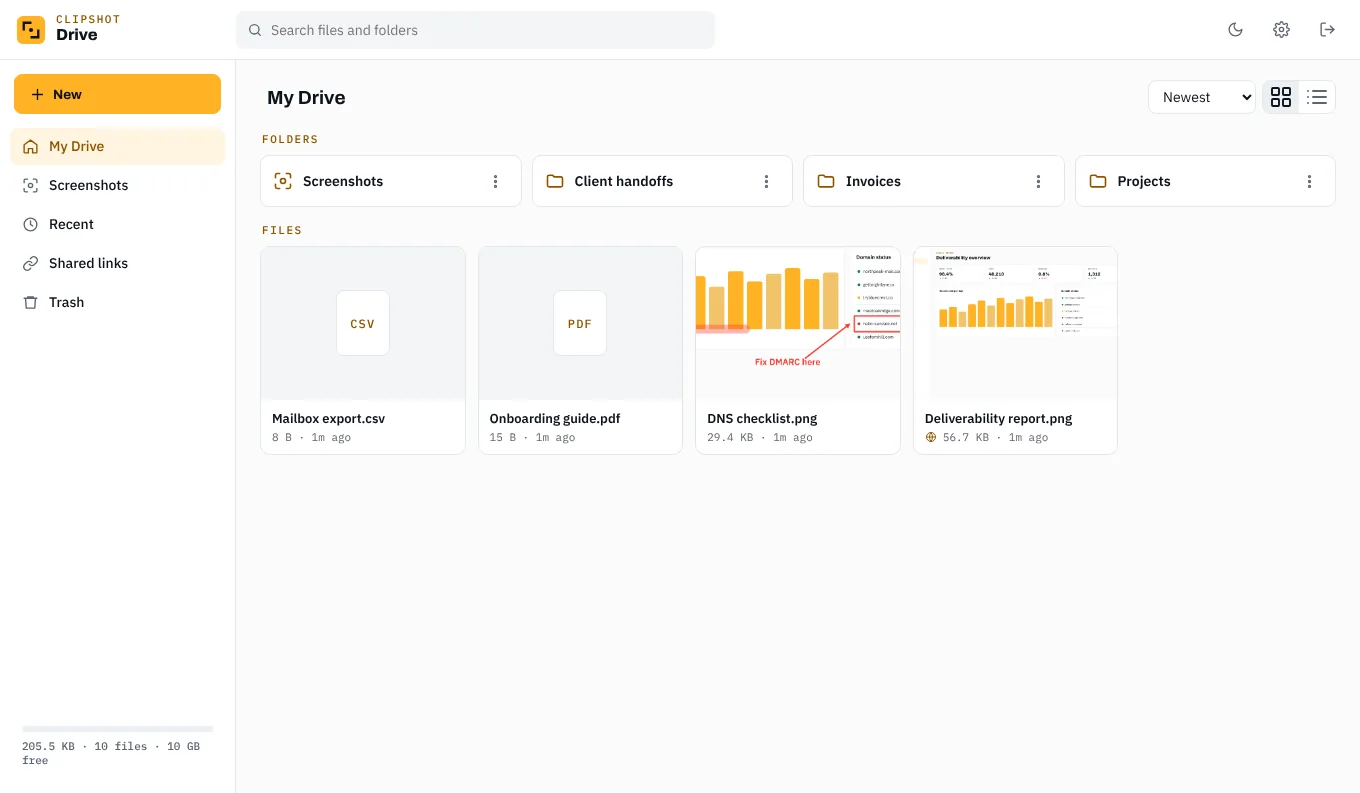
ClipShot Drive
Every upload lands in a private drive
Uploads go to a personal drive at shot.toukirahmed.com, protected by a password. Screenshots file themselves into a Screenshots folder; you can also drag in any file — PDFs, videos, whole folders — and share them the same way.
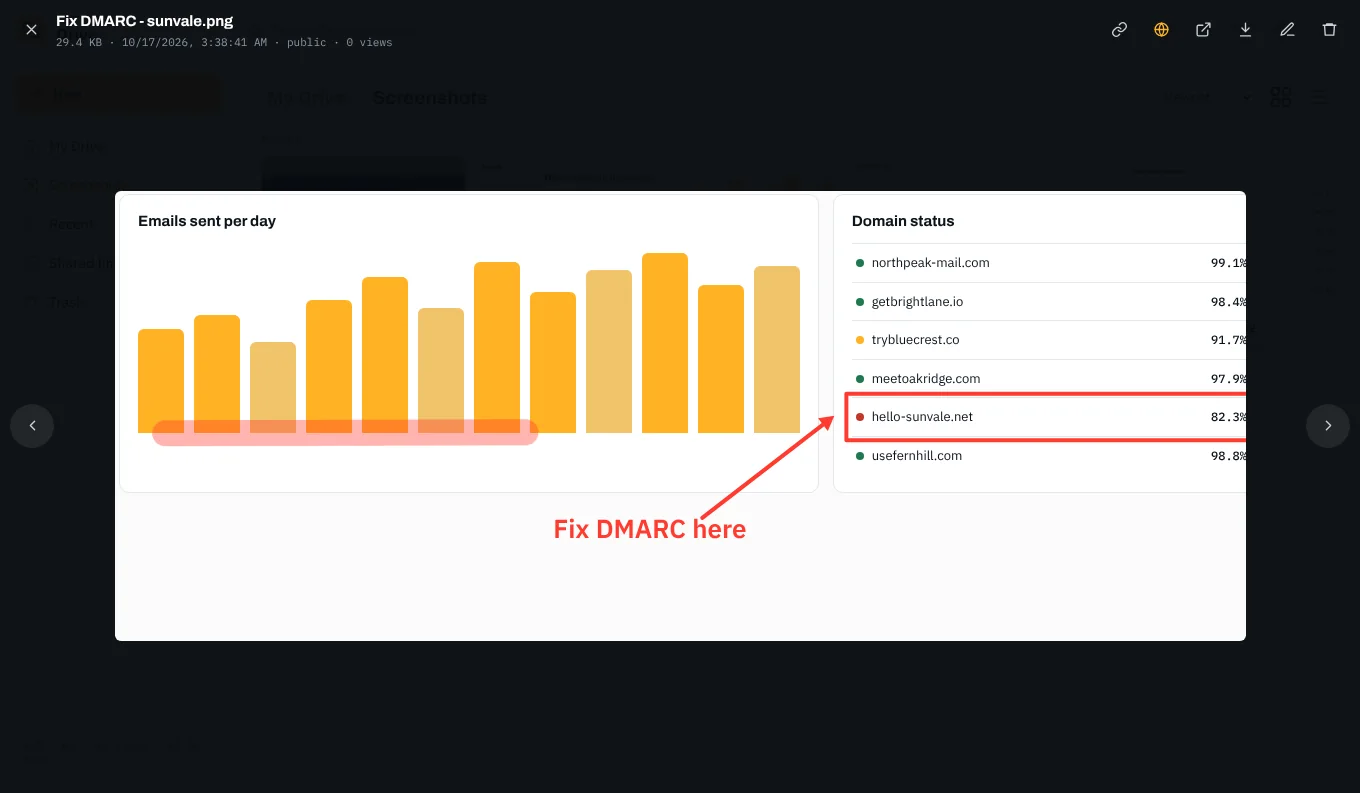
Full-screen preview · ← → to browse
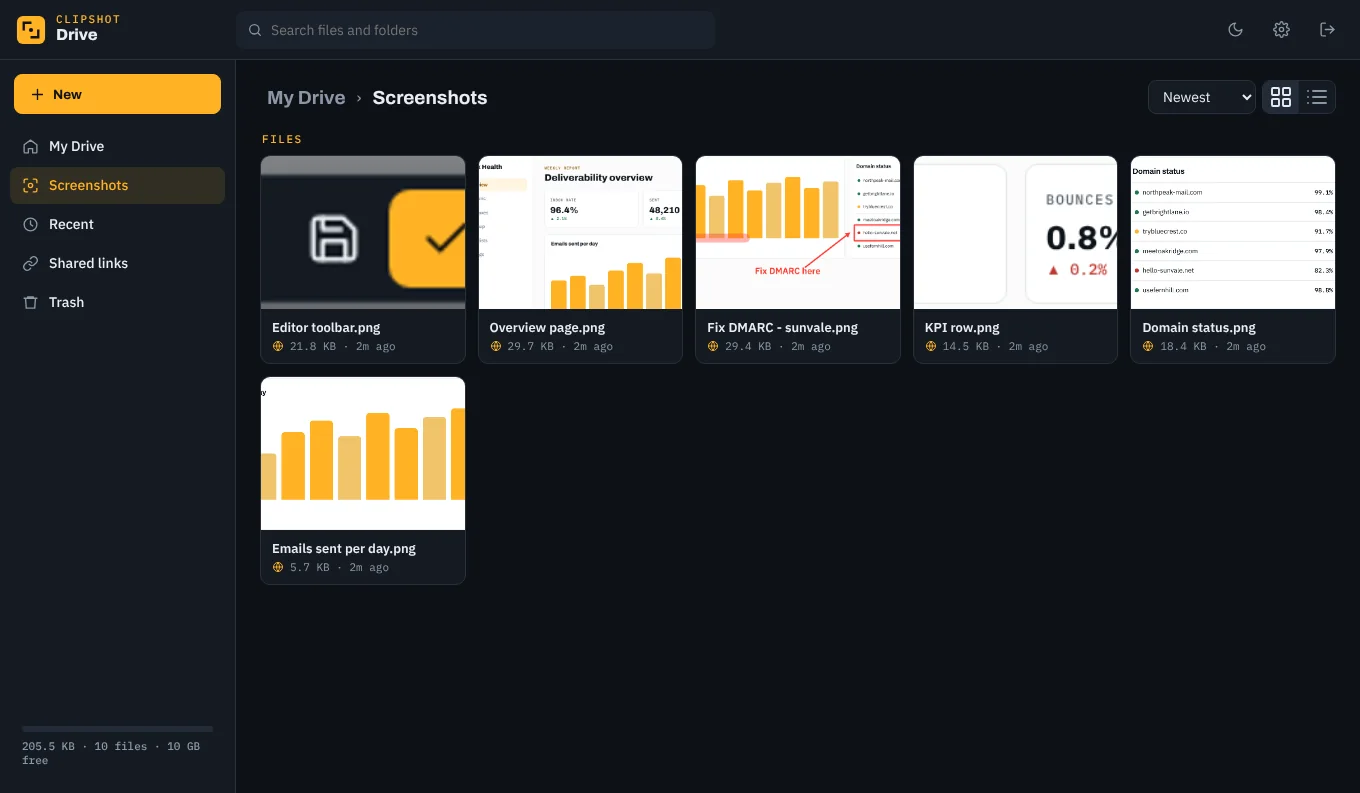
Dark mode
Folders & drag-drop
Create folders, drop files or whole folders in, drag items onto folders to move them.
Private or public
Files are private until you share them. Turn a link off any time and it stops working.
Search & sort
Find anything by name across every folder. Grid or list view, sorted by date, name or size.
Trash with undo
Deleted files wait in Trash for 30 days, then clean themselves up.
Settings
Works the way you work
Change the hotkeys, where files are saved, PNG or JPG, the file-name pattern, and whether ClipShot starts with Windows. Every option takes effect as soon as you save.
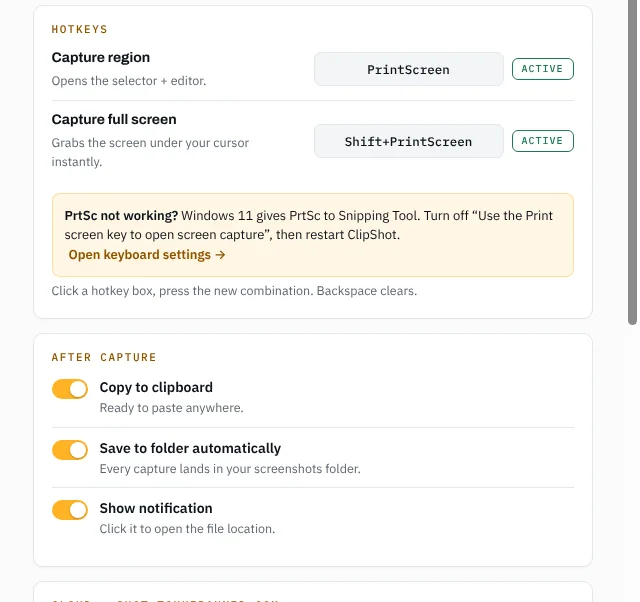
Hotkeys & after-capture
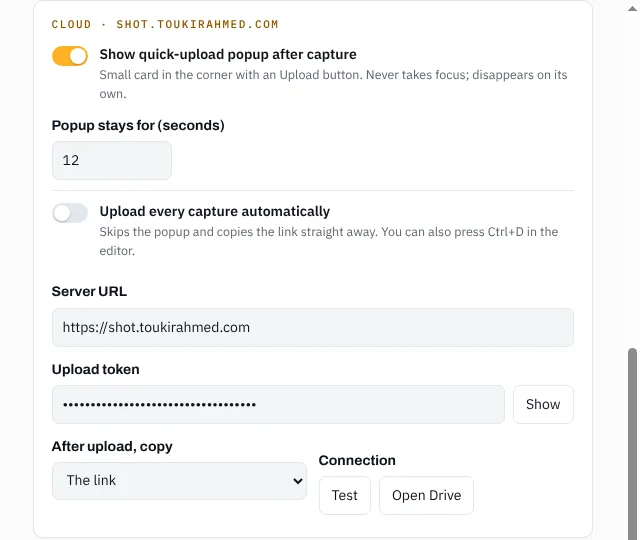
Popup & cloud upload
Everything included
Small app, full feature set
Region & full screen
PrtSc for an area, Shift+PrtSc for the screen under your mouse.
Always on the clipboard
Paste straight into WhatsApp, Slack, Gmail, Docs — no saving and attaching.
Auto-saved to a folder
Every capture is also saved to Pictures\ClipShot with a timestamped name.
Multi-monitor & HiDPI
Works across every screen and scaling level, saved at full native resolution.
One-click links
Upload from the popup, the editor (Ctrl+D) or automatically.
Works offline
No connection? Capturing still works; uploads queue and retry by themselves.
Hide sensitive info
Pixelate emails, tokens and client names before anything leaves your PC.
Logged, not lost
Every capture and upload is logged, so a failure is always traceable.
Keyboard
Fast with the keyboard
Every tool and action has a shortcut, shown in each button's tooltip.
| PrtSc | Capture an area |
| Shift + PrtSc | Capture the full screen |
| Enter / Ctrl + C | Copy (and save) |
| Ctrl + D | Upload & copy link |
| Ctrl + S / Ctrl + Shift + S | Save / Save as… |
| P L A R E M T B | Pen, line, arrow, box, ellipse, marker, text, pixelate |
| Ctrl + Z / Ctrl + Y | Undo / redo |
| Ctrl + A | Select the whole screen |
| Esc | Cancel |
Under the hood
How it's built
A native Windows app on your side, Cloudflare's global network on the other.
On your PCClipShot app
A lightweight tray app. It freezes the screen the instant you press the key, so the capture is exactly what you saw. Images stay on your PC unless you choose to upload.
In the cloudCloudflare Workers + R2
Uploads are stored in Cloudflare R2 and served from Cloudflare's edge, so links open fast anywhere in the world. Each link uses a random 8-character ID that can't be guessed.
SecurityToken + password
The app uploads with a private token; the drive is password-protected with lockout after repeated failures. Shared files can't run scripts, and private files never load without signing in.
FAQ
Questions
Is ClipShot free?
Yes. Download it and use it — capturing, editing, saving and copying work with no account and no internet connection.
Windows says “Windows protected your PC” when I install it
That's SmartScreen showing a warning for a new app that isn't code-signed yet. Click More info → Run anyway. It only appears the first time.
Pressing PrtSc opens the Snipping Tool instead
Windows 11 sends PrtSc to the Snipping Tool by default. Go to Settings → Accessibility → Keyboard and turn off “Use the Print screen key to open screen capture”, then restart ClipShot. You can also pick any other hotkey in ClipShot's settings.
Where are my screenshots stored?
On your PC in Pictures\ClipShot (you can change the folder). Nothing is uploaded unless you click Upload or turn on automatic upload.
Who can see an uploaded screenshot?
Only people you send the link to. Links are random and not listed anywhere. You can make any file private again, which instantly breaks its link, or delete it.
Does cloud upload work for everyone?
Upload needs a ClipShot Drive server and an upload token, set in ClipShot → Settings → Cloud. Without one, ClipShot works fully on its own as a capture-and-edit tool.
Get ClipShot
Your next screenshot is one key away
Install in a minute. It starts with Windows and stays out of your way.